
You’re going to be staring at these screens for hours. A bad setup means you’re constantly craning your neck or leaning forward. That adds up to real headaches and back pain.
A good setup puts your most important charts right where your eyes naturally rest. You stop wasting energy moving your head and can focus on your trades. Comfort means focus.
Forget the most expensive gaming monitor. For trading, just a few specs really matter.
A 27-inch screen with 1440p resolution is the sweet spot. It gives you space for charts without shrinking text. An IPS panel is best-it has good color and you can see it clearly even from an angle.
A refresh rate of 75Hz or 100Hz is smooth enough for scrolling data. You can read more in our guide on 1440p vs 4K for Trading Monitors: Which Resolution Is Best?
Two Monitors or One Ultrawide? This is the first big choice. A single ultrawide gives you a simple view. But two separate monitors are more flexible. You can snap apps to each screen and angle them differently. For most traders, two standard 27-inch monitors is a solid, cost-effective pick. See our screens and monitors to compare.
Try to use the same model. Matching the size, resolution, and brightness is much easier on your eyes during a long session.
Don’t just use the stands that come in the box. They hog desk space and are hard to position for two screens.
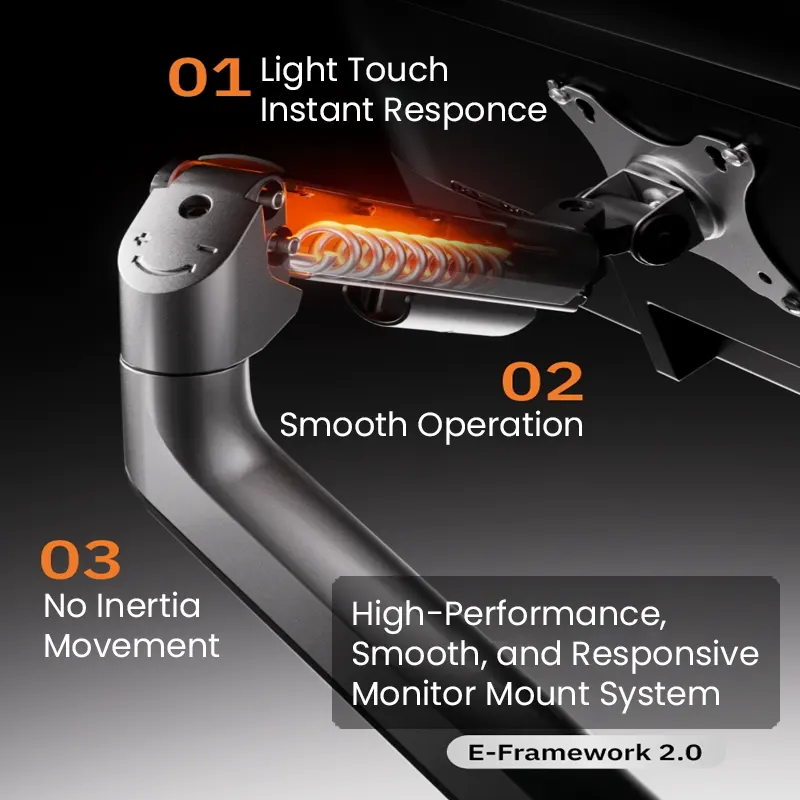
A dual monitor arm is the best upgrade. It clamps to your desk and holds both screens. This frees up space and lets you move each monitor to find the perfect angle.
Get a sturdy arm with good reviews that fits your monitor’s weight. Browse our monitor mounts to find one for your desk.
Desk Depth and Mount Check: Measure your desk first. A standard desk is about 30 inches deep. The arm needs a solid lip to clamp onto, usually at least 1.5 inches thick. Check the arm’s weight limit and make sure it uses the standard 100×100 mm VESA pattern.
Cable management matters. A mess of wires is distracting and makes it hard to adjust things later.

When you install the arm, run the video and power cables through its built-in channels. Use zip ties to bundle them neatly. This keeps things clean and stops cables from pulling on your screens.
Use good cables. A bad HDMI or DisplayPort cable can cause flickering or a blank screen. It’s smart to keep spare cables and power adapters around.
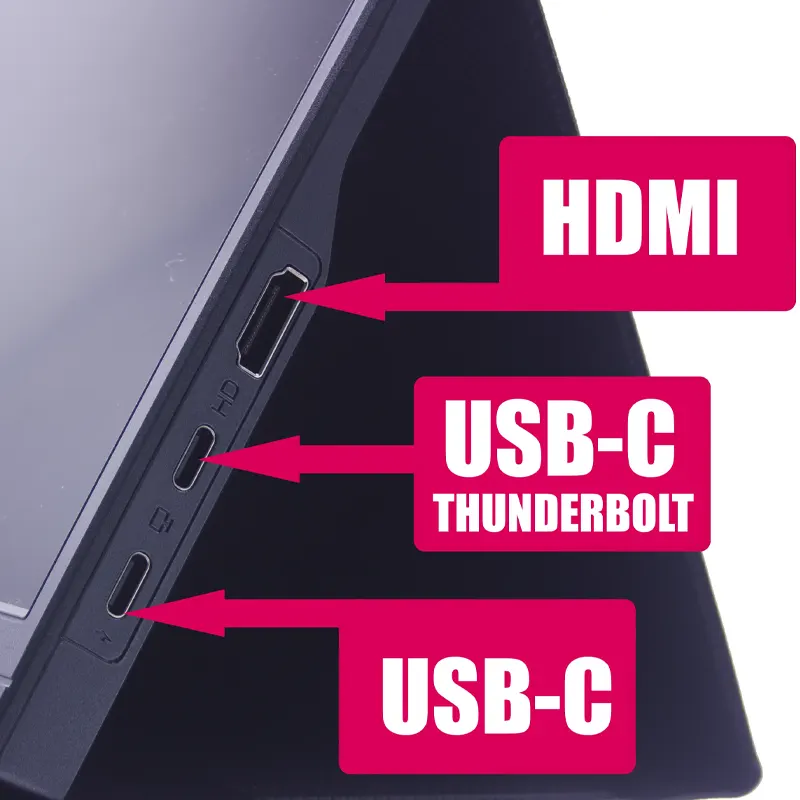
What Your Computer Needs: Your computer needs the right ports. Most modern graphics cards and laptops can run two or three screens. Check for HDMI, DisplayPort, or USB-C outputs. You need one cable per monitor. If you’re short on ports, you’ll need a docking station or adapter. Our section on adapters and hubs can help.
Let’s position a standard two-monitor setup. Sit in your chair normally and look straight ahead. That’s your main viewing spot.
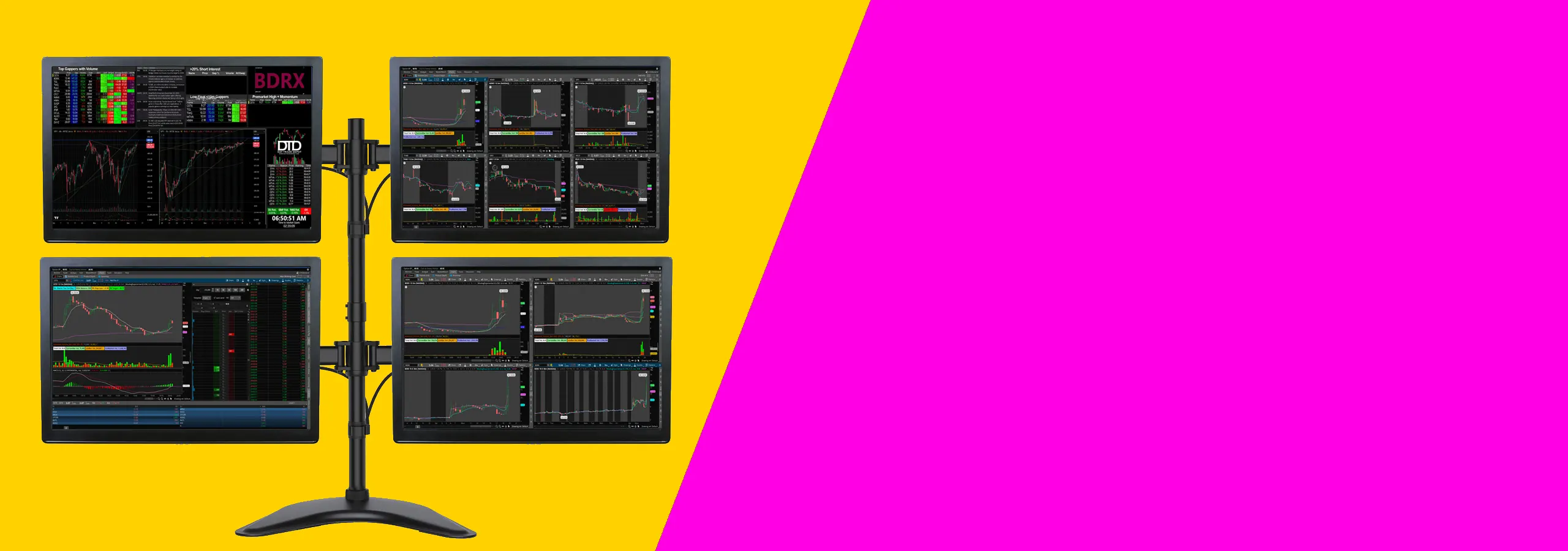
This setup cuts down on neck strain and keeps your data in view.
Is a curved monitor better for a two-screen setup?
It can be, but it’s not essential. A gentle curve can feel more wide. For two screens, you’d use two separate curved monitors. The benefit is subtle-standard flat panels work fine.
How do I stop the gap between two monitors from bothering me?
Put your main chart in the center of your primary monitor. Use the second screen for things like news feeds or watchlists. Your focus stays centered, so the bezel gap matters less.
Can I mix different sized monitors?
You can, but it’s not ideal. Different sizes make alignment hard and your cursor will jump between screens. If you must mix, align the top edges and use the bigger screen as your main one.
What if my desk is against a wall?
This is common. A clamp-on monitor arm still works best. Just make sure it can push the screens back near the wall. Measure so the arms don’t hit the wall when folded.
Do I need a special graphics card for two 1440p monitors?
Not a special one, but a decent modern card. Most graphics cards from the last five years can handle two 1440p screens for trading. You only need power for gaming, not charts.
Positioning your monitors right is simple and makes a big difference. Start with good gear like two 27-inch screens and a solid mount. Then adjust the height, distance, and angle to fit you. A clean, comfortable desk cuts down on strain and distraction. You’ll find it easier to track your trades.
For more details, check out: Best 27-Inch Monitors for Day Trading in 2026 and Building an Ergonomic Multi-Monitor Setup for Day Traders.
This kind of setup works for most traders who want a clean desk and clear charts without spending too much. It suits people using one or two monitors, a normal desk, and a standard trading platform. If you trade from home and want a practical place to start, this is it.
Two 27-inch monitors are usually the safer choice. You can keep charts on one screen and news, orders, or watchlists on the other. A 34-inch ultrawide can look cleaner, but some people find it harder to arrange windows on one very wide screen.
If you like clear separation between tasks, go with two screens. If you want fewer bezels and a cleaner look, an ultrawide can work well.
You do not need a high-end gaming computer for this kind of setup. You mainly need enough video outputs for the number of screens you want to use. Check for HDMI, DisplayPort, or USB-C before you buy anything.
If you are using a laptop, check how many external displays it can run. Some laptops will only support one or two extra screens unless you use the right dock or adapter.
Before you buy, check your desk depth and the mounting holes on the back of the monitor. A shallow desk can push the screens too close to your face. Most people are more comfortable with enough depth to sit back a little and keep the top of the screen at eye level.
Also make sure your monitor has mounting holes if you want to use an arm. That saves space and makes it easier to line both screens up properly.
If you’re on a tight budget, see 1440p vs 4K for Trading Monitors: Which Resolution Is Best?.
For more on arranging several screens, see Best 27-Inch Monitors for Day Trading in 2026.
Your desk matters too. Best 32-Inch Monitors for Day Trading in 2026 is useful.