
Three screens let you spread out your charts, watchlists, and news. You can see everything at once without constantly switching windows. It’s not just convenient-it helps you think clearly and react faster.
A clean desk is about focus. Fewer cables and less clutter mean fewer distractions. This is important when the market gets busy. It also just feels better for those long hours at your desk.
Picking the right screens and monitors is the most important step. You want three matching displays that are easy to look at all day.
For a triple setup, 27-inch monitors are the sweet spot. They give you plenty of room without taking over your whole desk. Three 32-inch screens are possible, but they need a very deep desk to use comfortably.
For resolution, aim for 2560 x 1440 (also called 1440p or QHD). Text looks much sharper than on standard 1080p screens. It’s also easier on your computer’s graphics card than running three 4K monitors. For more details, see our guide on 1440p vs 4K for Trading Monitors.
Look for monitors with IPS panels. IPS screens have good color and look consistent even when you view them from an angle. This matters when you have three screens angled toward you.
A refresh rate of 75Hz to 100Hz is fine for trading. You don’t need a high-speed gaming monitor. The jump from 60Hz to 75Hz makes scrolling feel smoother, and it’s usually a cheap upgrade.
Choose matte, anti-glare screens. They cut down on reflections from lights and windows. Also, make sure the monitors have a VESA mount pattern on the back (like 100x100mm). You need this for a monitor arm.
This is a common choice. A single large ultrawide screen has no bezels and fewer cables. But three separate monitors give you more flexibility. You can arrange them in a curve or turn one sideways for a news feed. For most traders, three monitors is the more practical and affordable option.
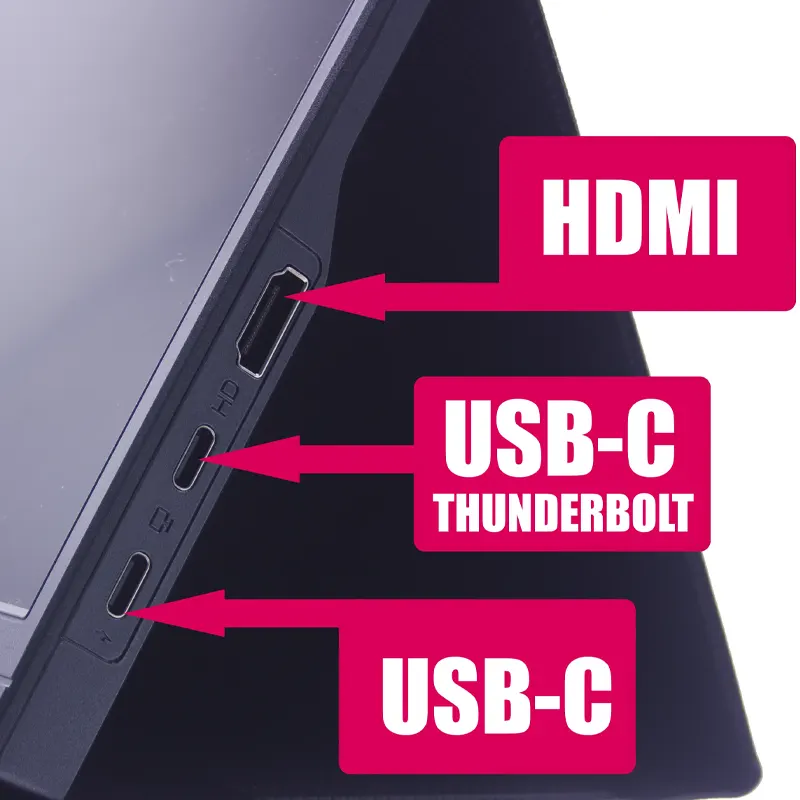
Your computer needs the right video outputs to run three monitors. Most modern desktops and many laptops can do this, but you should check.
Look at the back of your desktop or the sides of your laptop. You need three video outputs. Common types are HDMI, DisplayPort (DP), and sometimes USB-C. If your computer only has one or two, you’ll need to upgrade your graphics card or use a compatible docking station.
A good monitor mount is the key to a clean desk. It gets rid of the bulky stands and frees up space underneath.
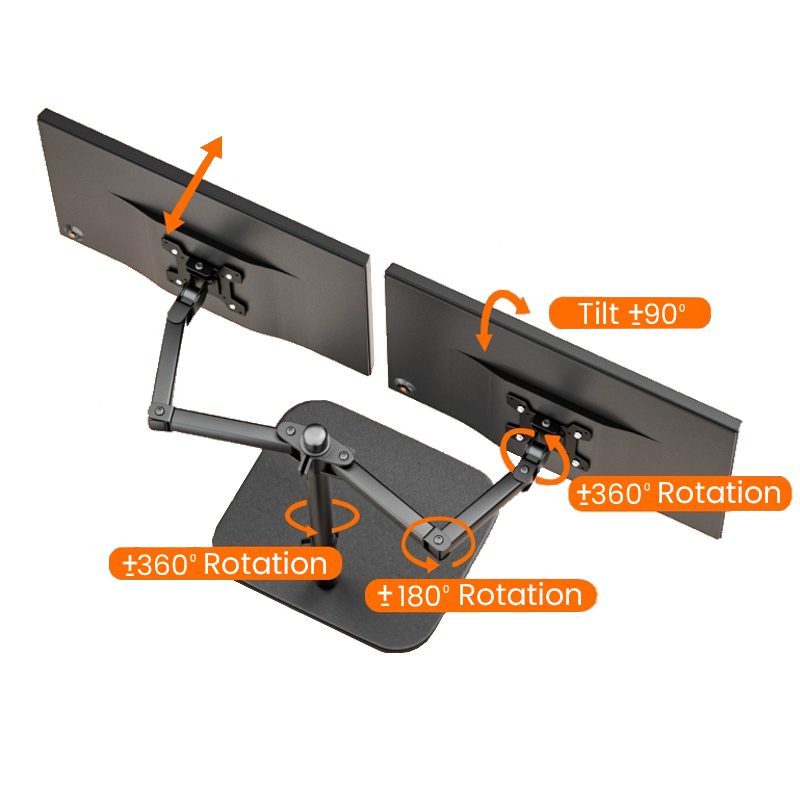
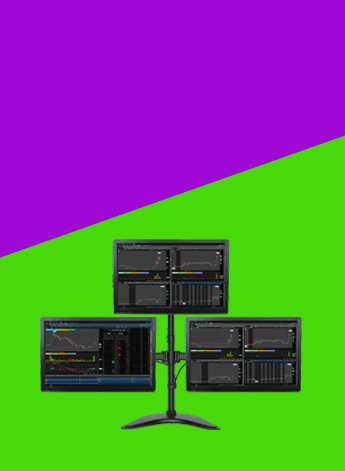
For three monitors, buy a single mount made for three arms. It’s cleaner and more stable than three separate arms. Make sure the mount can hold the weight and size of your monitors and that it uses the VESA pattern.
Measure your desk depth first. A standard desk is 24 to 30 inches deep. With a mount, the screens will sit back from the edge. On a shallow desk, they might end up too close to your face.
Choose a mount that clamps to the back of the desk. Avoid mounts that just sit on the surface-they can slide. If your desk is against a wall, check that the monitors can tilt without hitting it.
This is where “clean” really happens. The goal is to hide the cables.

You’ll need three video cables. Buy good ones that are long enough-6 feet is usually plenty. The cables that come with monitors are often too short.
Use adhesive cable clips or velcro straps to bundle the video and power cables together as they run down the monitor arm. Route the bundle behind a desk leg. For a very clean look, mount a power strip underneath your desk. This keeps the power bricks off the floor. You might need adapters and hubs if your computer’s ports don’t match your monitors.
Here’s a simple shopping list for a clean, effective setup:
Assembly Order: 1) Clamp the mount to your desk. 2) Attach the mounting plates to the monitors. 3) Hang the monitors on the arms. 4) Connect all the cables. 5) Bundle and route the cables neatly. 6) Plug everything in. 7) Adjust the monitors so they’re even and the center screen is right in front of you.
Avoid these problems to save time and hassle.
Not for most people. Three 27-inch screens is a very popular setup. You’ll want a desk that’s at least 60 inches wide to fit them comfortably.
It depends. Many laptops can run one or two external monitors. To run three, you usually need a specific docking station that supports it. Check your laptop’s manual first.
No. You don’t need the high refresh rates gamers use. Reliable monitors with good viewing angles and sharp text are what matter. Our guides on the Best 27-Inch Monitors and Best 32-Inch Monitors focus on these practical features.
Run all the cables down the monitor arm together. Bundle them with velcro straps. Route the bundle behind a desk leg. Plug them into a power strip mounted underneath the desk. This leaves just one cord going to the wall.
Start with your three monitors. Once you know their exact size and weight, you can pick the right mount. Getting the monitors first prevents you from buying a mount that doesn’t fit.
Building a clean three-monitor setup is straightforward. Plan it out: get matching monitors, a solid mount, and take some time with the cables. The result is a focused, professional workspace that helps you trade better. You don’t need the fanciest gear-just the right stuff set up sensibly. Use the checklist above and you’ll be set.
Once your screens are up, make sure they’re positioned right for comfort. Learn about How to Position Multiple Monitors for Better Trading Ergonomics to avoid neck and eye strain.
This kind of setup works for most traders who want a clean desk and clear charts without spending too much. It suits people using one or two monitors, a normal desk, and a standard trading platform. If you trade from home and want a practical place to start, this is it.
Two 27-inch monitors are usually the safer choice. You can keep charts on one screen and news, orders, or watchlists on the other. A 34-inch ultrawide can look cleaner, but some people find it harder to arrange windows on one very wide screen.
If you like clear separation between tasks, go with two screens. If you want fewer bezels and a cleaner look, an ultrawide can work well.
Before you buy, check your desk depth and the mounting holes on the back of the monitor. A shallow desk can push the screens too close to your face. Most people are more comfortable with enough depth to sit back a little and keep the top of the screen at eye level.
Also make sure your monitor has mounting holes if you want to use an arm. That saves space and makes it easier to line both screens up properly.
If you’re on a tight budget, see How to Position Multiple Monitors for Better Trading Ergonomics.
For more on arranging several screens, see 1440p vs 4K for Trading Monitors: Which Resolution Is Best?.
Your desk matters too. Best 27-Inch Monitors for Day Trading in 2026 is useful.