
A good monitor setup is about comfort and efficiency. When you’re looking at screens all day, you need to reduce eye strain to stay focused. A 32-inch monitor gives you plenty of room. You can keep your charts, trading platform, and news feed open at the same time without shuffling windows. Seeing more at a glance helps you spot trades and manage risk faster. It also keeps your digital workspace clean, which is easier on your brain than using several smaller screens.
Picking a 32-inch monitor comes down to a few key things: resolution, panel type, and refresh rate. Get these right and you’ll be much more comfortable.
See our screens and monitors.
For a 32-inch screen, you have two good choices. 4K (3840 x 2160) is excellent. Everything looks very sharp, and you can fit a lot on screen without it getting fuzzy. The catch is that it needs a bit more power from your computer. 1440p (2560 x 1440) is a great practical choice. It’s easier on your system and usually costs less. It’s not as sharp as 4K, but for trading, it’s perfectly clear. If your budget and computer allow, 4K is the best pick for long-term clarity.
For trading, an IPS panel is almost always the right choice. The big reason is viewing angles. The picture looks the same even if you view it from the side. This is important if you use more than one monitor or move in your chair. IPS panels also have better color, which makes charts easier to read. Other panel types have trade-offs, but for trading, stick with IPS.
You don’t need a super-fast gaming monitor. A refresh rate of 75Hz or 100Hz is smooth enough for scrolling charts and moving windows. It feels better than a standard 60Hz screen and can help reduce eye strain. Aim for at least 75Hz if you can. It’s a good upgrade that doesn’t cost much extra.
To see how 32-inch compares to other sizes, check out our guide on the Best Monitor Size for Day Trading: 27 vs 32 vs 34 Inches.
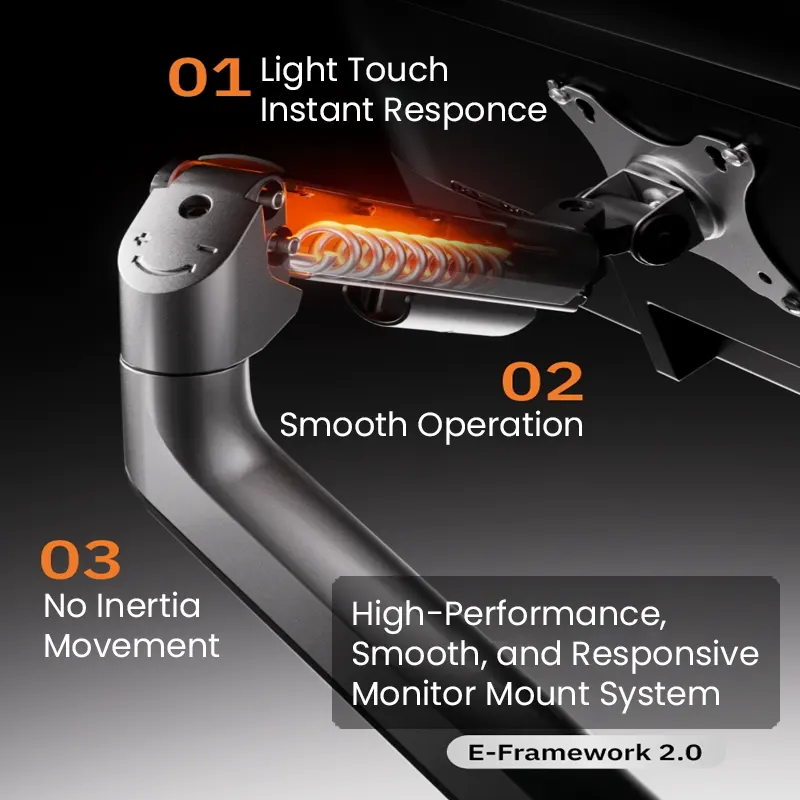
The stand that comes with your monitor often takes up too much space. A monitor arm or mount can free up your desk and let you position the screen perfectly. Make sure your desk is deep enough. A 32-inch monitor is big. You want to sit far enough back to see the whole screen comfortably. A desk that’s 30 inches deep or more is ideal. Position the monitor so the top of the screen is at or just below your eye level when you sit up straight. This is better for your neck.
Use the right cable to get the best picture. For a 4K monitor at 60Hz, a good High-Speed HDMI cable or a standard DisplayPort cable will work. For higher refresh rates, DisplayPort is usually the better choice. Check the ports on your computer. If you have a modern laptop with only USB-C, you’ll need a reliable USB-C to DisplayPort or HDMI adapter. A good adapter or hub is key for a stable setup. Keep your cables and power organized with clips or sleeves to avoid a tangled mess.

Here’s a practical setup. Choose a 32-inch, 4K, IPS monitor with a 75Hz refresh rate and a matte finish. Pair it with a single monitor arm on a desk that’s 30 inches deep. Connect it to your computer with a DisplayPort cable. Plug your keyboard and mouse into the monitor’s USB hub to keep things tidy. On screen, use your operating system’s snapping features. Put your main trading platform on the left two-thirds of the screen. Keep a browser with news and a market feed on the right third. Zoom your charts so everything is clear and easy to read.
Here are a few easy mistakes that can ruin a good monitor.
Use this list when you shop.
Not for most people. At the right distance, a 32-inch screen fills your view nicely without too much head turning. It’s great for having multiple windows open. If you’re used to a smaller screen, it might feel big for a day, but most traders adjust quickly.
You need a graphics card that can output a 4K signal. Most modern computers from the last few years can do this for basic use. If you run complex charting software with many indicators, you might need more power. Check your trading software’s system requirements.
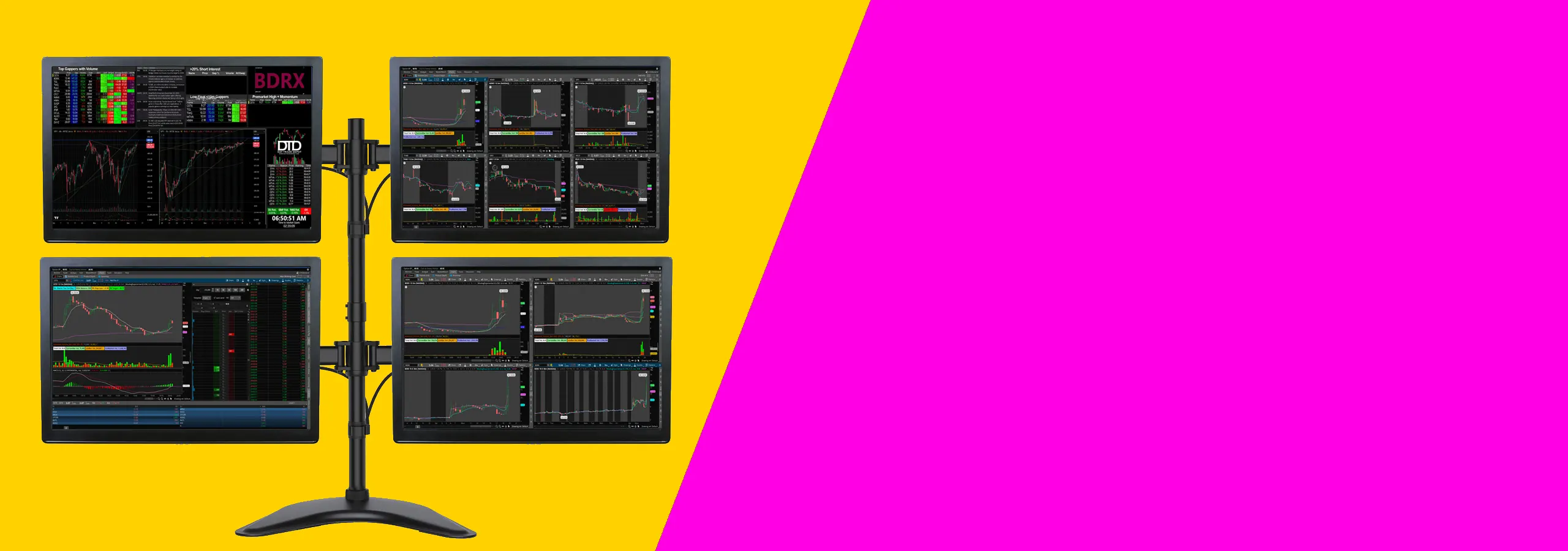
It depends on your desk width. Two 32-inch monitors need a very wide desk, usually over 60 inches, to fit with your keyboard and mouse. It can also make you turn your head too much. Most traders find one 32-inch monitor, or a 32-inch with a smaller vertical monitor, works better on a standard desk.
A slight curve can be comfortable on a 32-inch screen. It brings the edges a bit closer. It’s a personal choice. A flat screen works perfectly well. If you look at a curved screen, choose one with a mild curve. Be aware that mixing a curved and a flat monitor in a setup can be awkward.
Resolution is generally more important. Sharp text and clear charts reduce eye strain and let you fit more on screen. A higher refresh rate is a nice bonus for smooth scrolling, but you don’t need gaming speeds. Focus on a high-resolution IPS panel first.
Match your monitor’s brightness to your room’s light. In a bright room, turn it up. In a dark room, turn it down. Many monitors have a “Low Blue Light” mode that’s easier on the eyes. Avoid a very bright screen in a dark room.
The best 32-inch monitor for day trading is one that gives you sharpness, comfort, and good value. Look for an IPS panel with 4K or 1440p resolution and at least a 75Hz refresh rate. Use an adjustable stand or monitor arm to get the height and angle right. Remember to use good cables, manage brightness, and set up your desk to cut glare and strain. The goal is a workspace that lets you focus on trading, not your gear. A good 32-inch monitor, set up well, can be the center of a comfortable and productive trading station for years.
For other options, see these articles: Best 27-Inch Monitors for Day Trading in 2026 and Best Budget Monitors for Day Traders in 2026.