
A monitor arm clears your desk. It gives you space for your keyboard, notebook, or coffee mug. More importantly, it lets you put the screen exactly where you need it.
You can raise it to keep your neck straight. You can tilt it to cut glare. For one screen, it’s more comfortable. For multiple screens, you can line them up neatly without bulky stands.
A good arm also reduces wobble. This matters if you type hard or use a standing desk. A shaky screen is annoying and can strain your eyes.
Before you shop, get two numbers from your monitor. Don’t guess.
This is the most important number. Every arm has a weight limit, like “3 kg to 9 kg” or “holds up to 20 lbs.”
Find your monitor’s weight. Check the manual, the online specs, or the label on the back. It’s usually in kilograms (kg), sometimes in pounds (lbs).
Your monitor’s weight must be within the arm’s range. Aim for the middle. If your monitor is 7 kg and the arm maxes out at 8 kg, that’s cutting it close. Look for an arm that goes up to 10 kg or more.
Screen size matters, but not for the reason you think. The arm cares about how the monitor attaches.
Most monitors use a standard mount called VESA. It’s a square or rectangle of four screw holes on the back. The arm comes with a plate that screws into these holes.
The common sizes are 75×75 mm and 100×100 mm. Bigger, heavier monitors often use 100×100 mm or even 200×200 mm. Check your monitor’s specs for its VESA pattern. Most arms include adapters for both 75×75 and 100×100 mm.
Use screen size as a sanity check. A small arm isn’t built for a huge 40-inch screen, even if the weight somehow matches. The use from a big screen can overpower a weak arm.
Let’s apply those rules to typical monitors.
These are the most common sizes. A standard 27-inch monitor usually weighs between 4 kg and 6 kg (9 to 13 lbs).
You have tons of options. A basic, single gas-spring arm works perfectly. Look for a weight capacity of at least 2 kg to 9 kg. This gives you headroom. These arms are affordable and easy to find.
Pay closer attention here. A 32-inch monitor can be heavy, often between 6 kg and 10 kg (13 to 22 lbs) without its stand.
Don’t use an arm made for a 27-inch screen. You need a heavy-duty arm. Look for models made for 32-inch screens or with a high weight limit, like 5 kg to 15 kg.
The arm needs a strong gas spring. A good monitor mount for this size will feel solid and won’t sag when extended.
Ultrawide monitors are long. This creates use, which acts like extra weight. A 34-inch ultrawide can weigh 7 kg to 12 kg (15 to 26 lbs).
Pick an arm rated for both the weight and the large size. Look for arms labeled for “ultrawide” or “34-inch to 38-inch” screens. Their weight capacity must cover your monitor. Expect to pay more for this type.
Your desk is part of the equation. Arms attach in two main ways.
Clamp Mount: This is the most common and stable method. A C-clamp tightens onto the back edge of your desk. Make sure your desk has a lip for the clamp. Also check that no frame or cable tray is in the way.
Grommet Mount: The arm has a long bolt that goes through a hole in your desk. This is also very stable if your desk has a hole in the right spot.
Consider your desk depth. A monitor on an arm sits further back than on its stand. If your desk is shallow (under 60 cm or 24 inches deep), make sure the arm can bring the screen close enough. Some arms have a shorter reach.
A clean setup needs cable management. Dangling wires ruin the look.
Many arms have built-in cable management. This is usually a channel or clips along the arm to route your power and video cables. It’s a useful feature.
Plan your cable route before you mount everything. It’s easier to thread cables through the arm’s system before attaching the monitor. Also, check that your cables are long enough for the new position.
For a very clean look, use adhesive cable clips or an under-desk tray to manage the cables after they come down from the arm.
Let’s say you have a 32-inch work monitor. You check the specs: it weighs 7.2 kg and has a 100×100 mm VESA pattern.
You look for an arm. You skip basic models rated for 2-8 kg. You find a heavy-duty arm rated for 4-15 kg. It has a clamp for desks up to 8 cm thick and a cable channel. Your desk is 5 cm thick, so it works.
You mount the clamp, attach the VESA plate to the monitor, and hook it on. You adjust the spring tension so the monitor stays put but moves easily. You run the cables through the channel. Now your desk has more space, and you can pull the screen closer or push it back.
This kind of setup works for most traders who want a clean desk and clear charts without spending too much. It suits people using one or two monitors, a normal desk, and a standard trading platform. If you trade from home and want a practical place to start, this is it.
Two 27-inch monitors are usually the safer choice. You can keep charts on one screen and news, orders, or watchlists on the other. A 34-inch ultrawide can look cleaner, but some people find it harder to arrange windows on one very wide screen.
If you like clear separation between tasks, go with two screens. If you want fewer bezels and a cleaner look, an ultrawide can work well.
You do not need a high-end gaming computer for this kind of setup. You mainly need enough video outputs for the number of screens you want to use. Check for HDMI, DisplayPort, or USB-C before you buy anything.
If you are using a laptop, check how many external displays it can run. Some laptops will only support one or two extra screens unless you use the right dock or adapter.
Before you buy, check your desk depth and the mounting holes on the back of the monitor. A shallow desk can push the screens too close to your face. Most people are more comfortable with enough depth to sit back a little and keep the top of the screen at eye level.
Also make sure your monitor has mounting holes if you want to use an arm. That saves space and makes it easier to line both screens up properly.
This can be a problem. The arm’s spring is set for a certain weight. If your screen is too light, it may not stay down. Some arms have a tension adjustment screw to fix this. Check the product details.
No. A single arm is for one screen. For two monitors, you need a dual monitor arm. It has two separate arms on one clamp. Make sure the total weight of both monitors is within the arm’s total capacity.
Sometimes. You can buy a VESA adapter plate that clips to your monitor. But these can be less secure, especially for heavier screens. It’s better to buy a monitor with a standard VESA mount if you plan to use an arm.
First, make sure the arm’s weight limit is at least 3-4 kg more than your monitor. Second, read reviews for that specific model. Look for reviews from people who mounted a similar size and weight.
A good clamp, used correctly, won’t damage a solid desk. You can put a small piece of wood or a rubber pad between the clamp and the desk to spread the pressure. Don’t overtighten it.
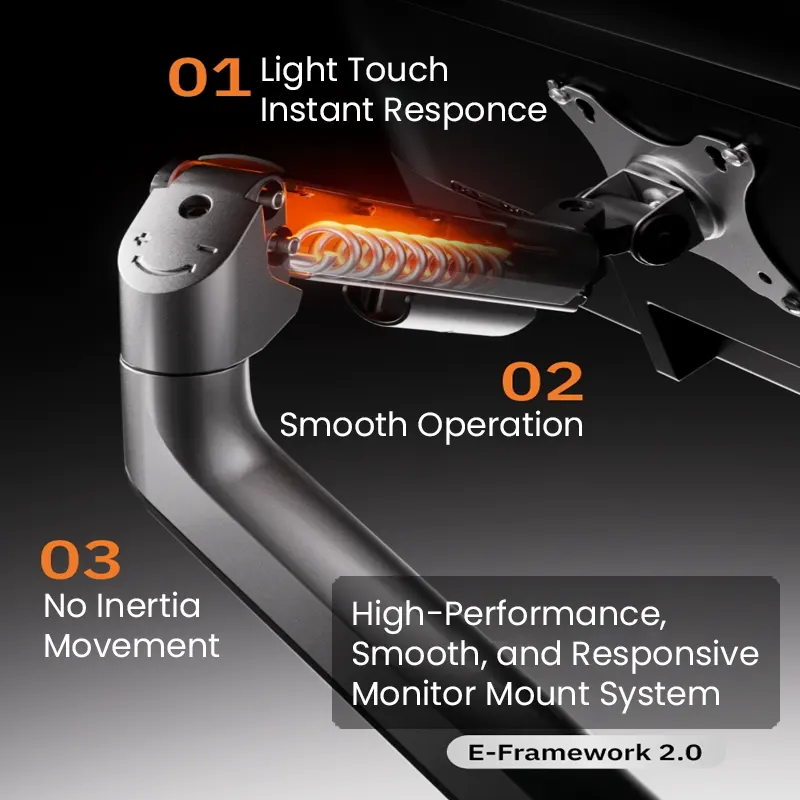
That’s the point. A quality gas-spring arm should let you reposition the screen with one hand, and it should stay put when you let go. If you have to fight it, the tension is wrong.
Choosing the right arm gets your monitor in the air. These articles can help you pick the right screen and position it well.
Picking a monitor arm is about matching numbers. Find your monitor’s weight and VESA pattern. Choose an arm whose weight capacity comfortably exceeds your monitor’s weight, especially for screens 32 inches and up.
Don’t guess. Check the specs. Getting the right, sturdy arm makes a big difference. Your screen will be stable, your desk will be clear, and you can adjust your setup to stay comfortable.