
A clean 4-monitor setup gives you tons of screen space without the clutter. You can watch charts, news, and your trading platform all at once. But getting four screens to look neat takes a bit of planning. This guide covers the basics, from picking the right monitors to taming the cable mess.
Four monitors let you create separate zones for your work. You can dedicate each screen to a specific task. For example, use one for charts, one for a watchlist, one for news, and one for your brokerage account. This stops you from constantly switching windows. You see everything you need right away. A clean, wobble-free desk helps you focus on trading, not your setup.
This is best for active traders who need several streams of data visible at the same time. If you only check a few charts a day, two or three screens might be enough. Four monitors takes more desk space, money, and computer power.
Your first big choice is the monitors. For a clean look, get four matching ones. Mixing different sizes and brands looks messy and makes them hard to line up.
For most traders, 27-inch screens with 2560×1440 resolution (1440p) are the best balance. They give you plenty of room without making text too small. You can fit more on a 1440p screen than a 1080p one. For more details, see our guide on 1440p vs 4K for Trading Monitors.
Choose an IPS panel for good color and wide viewing angles. A 75Hz or 100Hz refresh rate is fine for trading; you don’t need a fancy gaming monitor. Look for thin bezels so the black borders between screens are less noticeable.
Some people think about one huge ultrawide monitor instead of four separate ones. A 49-inch screen can feel like two 27-inch monitors side-by-side. But for four distinct zones, separate monitors are usually better. You can arrange them in a grid. The physical bezels can actually help separate your workspaces. With one giant screen, windows can drift and overlap. Separate monitors are also easier to upgrade one at a time.
Your computer has to be able to run four displays. Most modern desktop graphics cards can do this. Many have four video outputs like DisplayPort and HDMI.
Check your graphics card. It needs to support the total resolution of all four screens combined. Four 1440p monitors is a lot of pixels. A mid-range card from the last few years should handle it for basic use.
If your computer only has one or two outputs, you’ll need to add a second graphics card or use a special docking station. This gets complicated. It’s easier to have the right ports from the start. If you’re using a laptop, you’ll need to find a dock that definitely supports multiple monitors.
A good mount is essential for a clean four-monitor desk. It saves space and lets you position the screens just right.

You have two main options. A single quad-monitor mount holds all four screens on one stand. Or, you can use two dual-monitor arms. The single stand is often more stable for a neat grid. Two arms give you more flexibility for different layouts.
Your desk needs to be sturdy. The mount will clamp to the back. A solid wood or metal desk is best. A wobbly desk will make all the screens shake. Also, make sure your desk is deep enough. With a mount, the screens sit back a bit. You need room so you’re not sitting too close. A desk that’s at least 30 inches deep works well for a 4-monitor grid. Look through our monitor mounts to find one that fits.
Always check the mount’s weight limit and VESA compatibility. Your monitors need VESA mounting holes on the back (most do).
This is where you make it look clean or messy. You’ll have four power cables and four video cables, plus cables for your keyboard and mouse.

Use the right video cable. DisplayPort is usually better than HDMI for 1440p, especially if you want a higher refresh rate. Buy cables that are long enough to route neatly, but not so long you have a huge bundle to hide.
The trick is to run all the cables down the monitor mount arm. Use zip ties or Velcro straps to bundle them into one neat trunk. Then run that trunk down the back of your desk leg to the floor. A cable management tray or sleeve under the desk keeps power strips and extra wire out of sight. Spending an hour on this makes your setup look professional and prevents accidents. We have the cables and power gear to help.
See our adapters and hubs.
Here’s a practical example you can build.
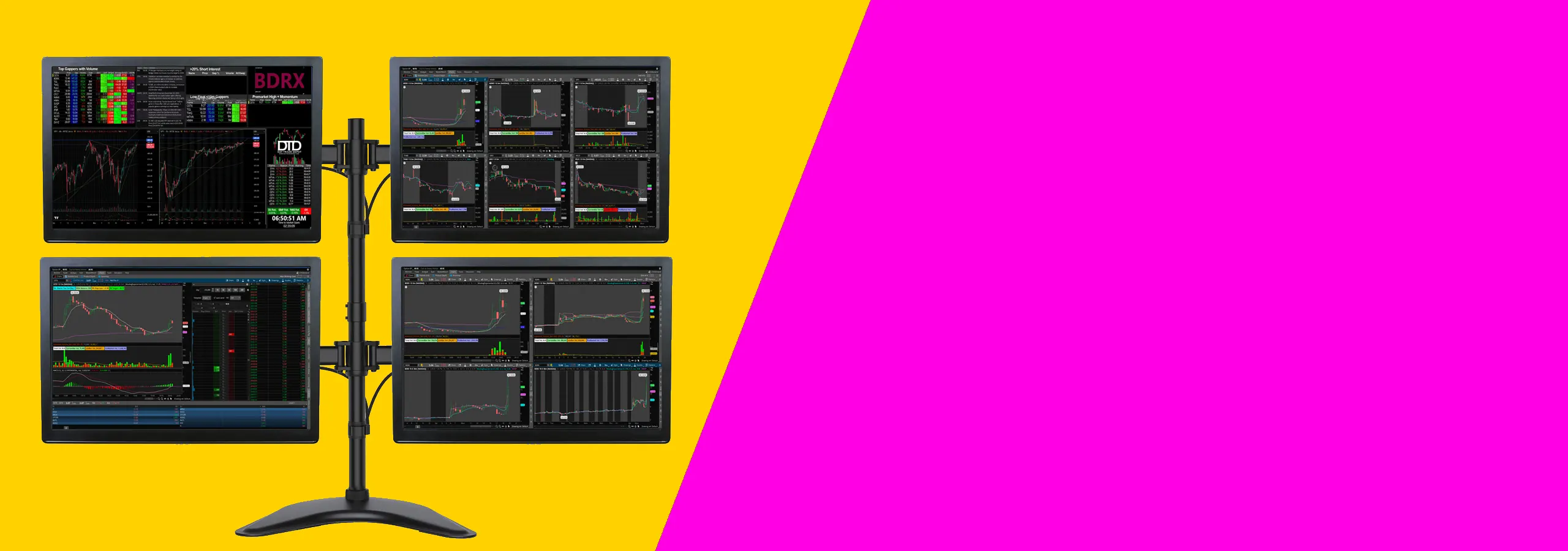
Start with four identical 27-inch, 1440p, IPS, 75Hz monitors with thin bezels. Get a heavy-duty quad-monitor mount that clamps to your desk. Arrange the monitors in a 2×2 grid.
Now assign your screens. Put your main trading platform and most important chart on the bottom-left screen, right in front of you. Put secondary charts or a detailed watchlist on the bottom-right. Put news feeds and calendars on the top-left. Put your brokerage window or a web browser on the top-right.
This layout keeps your main focus front and center, with reference material above and to the side. It makes sense and doesn’t require much head turning.
It’s easy to make a few key errors. Here’s what to avoid.
Use this list to make sure you have everything.
This kind of setup works for most traders who want a clean desk and clear charts without spending too much. It suits people using one or two monitors, a normal desk, and a standard trading platform. If you trade from home and want a practical place to start, this is it.
Two 27-inch monitors are usually the safer choice. You can keep charts on one screen and news, orders, or watchlists on the other. A 34-inch ultrawide can look cleaner, but some people find it harder to arrange windows on one very wide screen.
If you like clear separation between tasks, go with two screens. If you want fewer bezels and a cleaner look, an ultrawide can work well.
Before you buy, check your desk depth and the mounting holes on the back of the monitor. A shallow desk can push the screens too close to your face. Most people are more comfortable with enough depth to sit back a little and keep the top of the screen at eye level.
Also make sure your monitor has mounting holes if you want to use an arm. That saves space and makes it easier to line both screens up properly.
If you’re on a tight budget, see How to Build a Clean 3-Monitor Trading Setup.
For more on arranging several screens, see How to Position Multiple Monitors for Better Trading Ergonomics.
Your desk matters too. How to Set Up a 3-Monitor Trading Station on a Budget is useful.
Probably. If you’re just starting, you likely don’t need four screens yet. A two or three-monitor setup is a better and cheaper way to begin. You can always add more later.
You can, but it’s often overkill. Text and charts get very small at 4K unless you use scaling, which can cause issues. It also needs a much more powerful graphics card. For multi-monitor trading, 1440p is the more practical and affordable choice.
You’ll need a docking station or adapter that specifically supports multiple external displays. Be careful: not all docks can run four independent monitors from two ports. Check the specs closely. For a stable 4-monitor setup, a desktop is often simpler.
The top of your main screen should be at or just below eye level. Place the other screens around it so you only have to move your eyes, not your neck, to see them. Don’t tilt your head up too much for top screens. For more tips, read our article on How to Position Multiple Monitors for Better Trading Ergonomics.
For a neat, symmetrical grid, one quad mount is usually best and most stable. If you want one monitor in portrait mode or a custom layout, two dual arms give you more flexibility to adjust each pair of screens.
Building a clean 4-monitor trading setup is worth the effort. It makes you more efficient. The key is planning: pick matching monitors, get a solid mount, verify your computer can handle it, and manage your cables.
You don’t need the most expensive stuff. You need reliable screens set up in a stable, logical way. When it’s done right, the setup fades into the background so you can focus on trading. For other ideas, check out our guides on a clean 3-monitor setup or a budget 3-monitor station.