What you get
You get more chart space without changing your desk. This portable monitor for day trading adds a second screen fast, so your tools stay visible when you need them.
This 15.6 inch portable monitor gives you Full HD 1920×1080 on an IPS panel. The matte finish helps reduce reflections in normal room lighting. It also supports HDR.
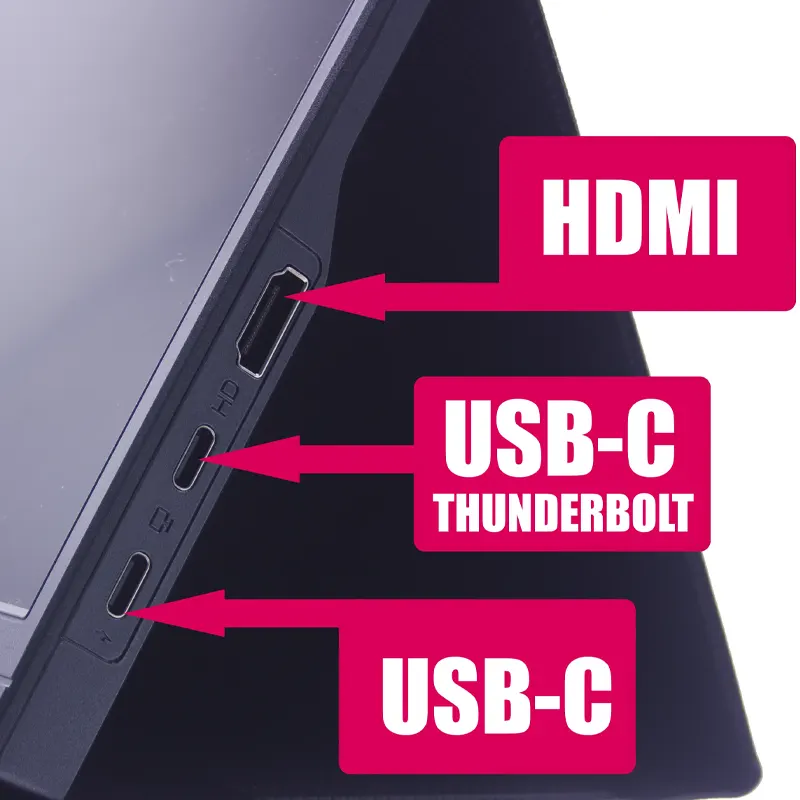
If you want a USB-C portable monitor setup, you can run video through USB-C. In many setups the same USB-C connection can also power the screen, keeping cables simpler. If your device does not support USB-C video, HDMI is the fallback.
- Step 1: Connect USB-C if your device supports USB-C video, or use HDMI if that is your best match
- Step 2: Set your display mode to Extend or Mirror based on how you trade
- Step 3: Park scanners, watchlists, or news on the extra screen and keep order entry on your main display
- Step 4: If you want a fixed position, pair it with a portable monitor mount or a trading desk mount
Example setup: run one chart full-screen at 1920×1080 on the monitor, then keep your watchlist and scanner on your main screen. This keeps your layout stable during the session and works well as a second monitor for laptop trading.
Many arms and brackets use 75×75mm and 100×100mm mounting hole patterns. This screen is listed with a 75×75mm pattern, so confirm your mount supports 75×75mm before you lock in your hardware.
If you are building toward a multi-monitor workstation later, this screen also fits as a side display while you plan a larger build like a six screen mount.
For matching parts, browse Screens & Monitors, add the right leads from Cables & Connectivity, or choose a solid arm in Desk Arms & Mounts.
Why it works for day trading
- More space for your workflow when you need a portable monitor for day trading beside your main screen
- Clear Full HD 1920×1080 for readable text and clean chart layouts
- IPS viewing so the screen stays readable from different angles
- Matte finish to reduce reflections in everyday rooms
- Simple connections with USB-C portable monitor support plus HDMI for wider device compatibility
Key specs
- Screen Size: 15.6”
- Resolution: 1920×1080 Full HD
- Panel: IPS
- Refresh Rate: 60Hz
- Finish: Matte
- HDR: Supported
- Mounting holes: 75×75mm
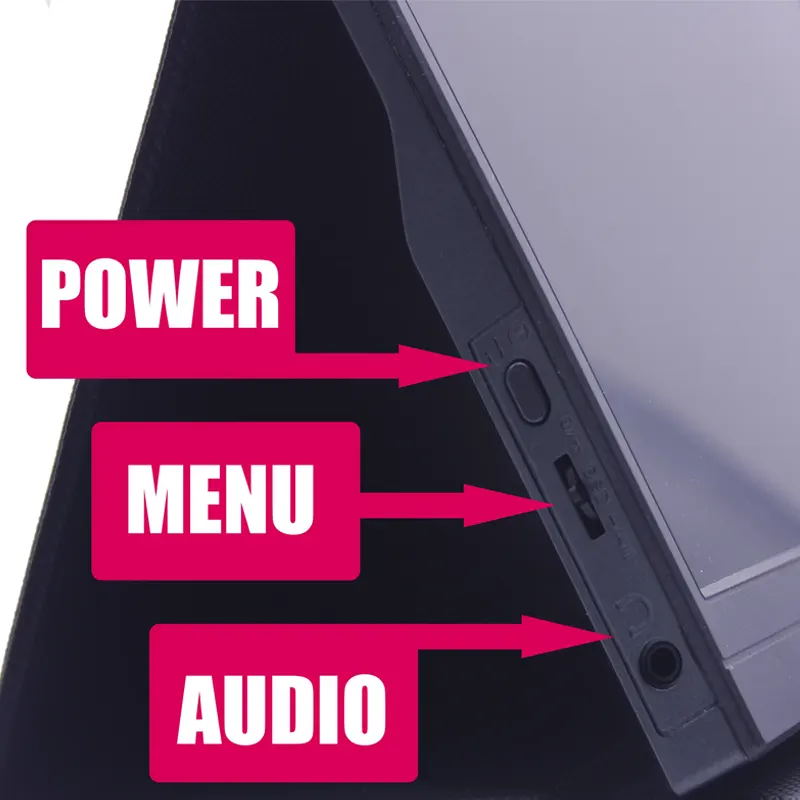
- Ports: 2× USB-C, 1× HDMI, 1× 3.5mm Audio
- Screen Type: Non-touch
What’s in the box
- 1× 15.6” Portable Monitor
- 1× HDMI Cable
- 1× USB-C to USB-C Cable
- 1× Power Cable
- 1× Power Adapter Plug
- 1× Manual
Compatibility and next step
Your device must support video output via USB-C and or HDMI. If you want a one‑cable USB-C setup with video plus power, your USB-C port must support video output.
If you are unsure, send us your laptop model or a photo of the ports and we will confirm the best setup before you order. That keeps your second monitor for laptop trading plan simple and helps avoid buying the wrong cable.
Next step: decide whether you will run USB-C or HDMI, plug in, then set the display to Extend for a cleaner multi-monitor workstation layout.